






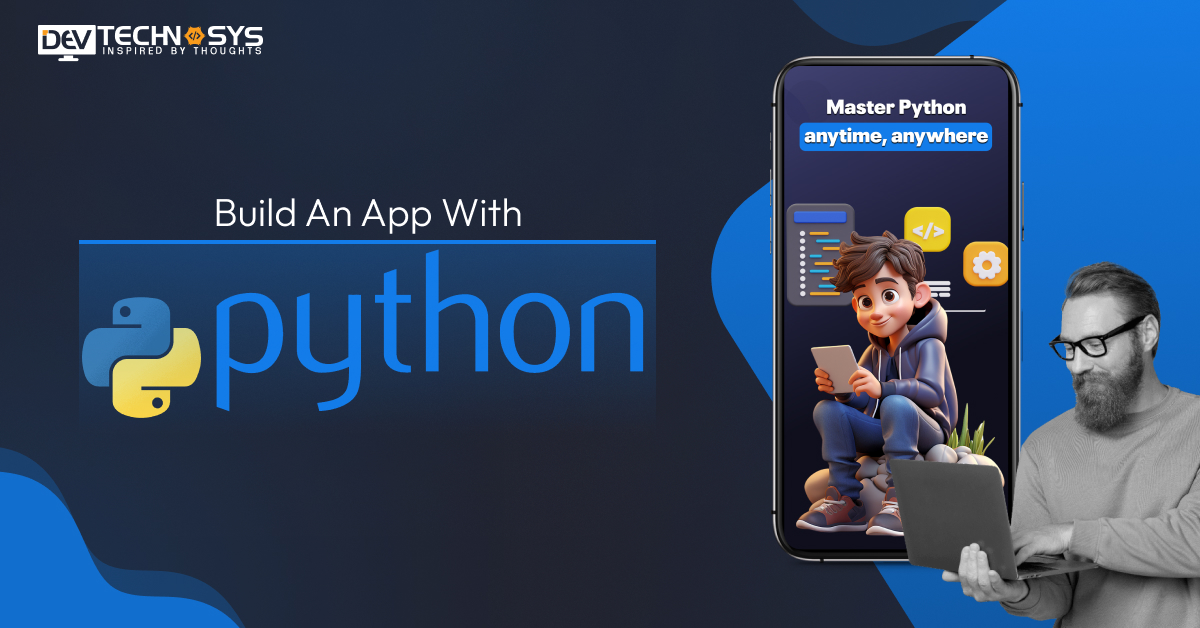
Ready to turn your app idea into reality?
With Python, one of the world’s most beginner-friendly and powerful programming languages, building your own app is easier than you think!
Whether you’re dreaming of the next big game, a useful tool, or a sleek web app, Python gives you the tools to bring it to life, without needing years of coding experience.
Key takeaways:
-
-
- Use Django or Flask to quickly scaffold your Python web app backend with built-in tools and routing.
- To handle dependencies and keep your project separate, start by setting up a virtual setup.
- Create app.py (Flask) or manage.py (Django) to run and control your application server.
- During Python Android app development, use tools like Flask’s debug mode or Django’s runserver for live code reloads.
-
In this blog, we’ll walk you step-by-step through how to build an app with Python, even if you’re just starting out.
From choosing the right tools and frameworks to writing your first lines of code, you’ll learn how to turn your vision into something real.
So grab your laptop, bring your creativity, and let’s build something awesome together.
Python makes it simple, and we’ll show you how!
Why Build Apps With Python?
Python is great for making apps because it is easy to use, flexible, and has powerful tools. From rapid prototyping to scalable production apps, its cross-platform support and strong community accelerate Python development and reduce time-to-market.
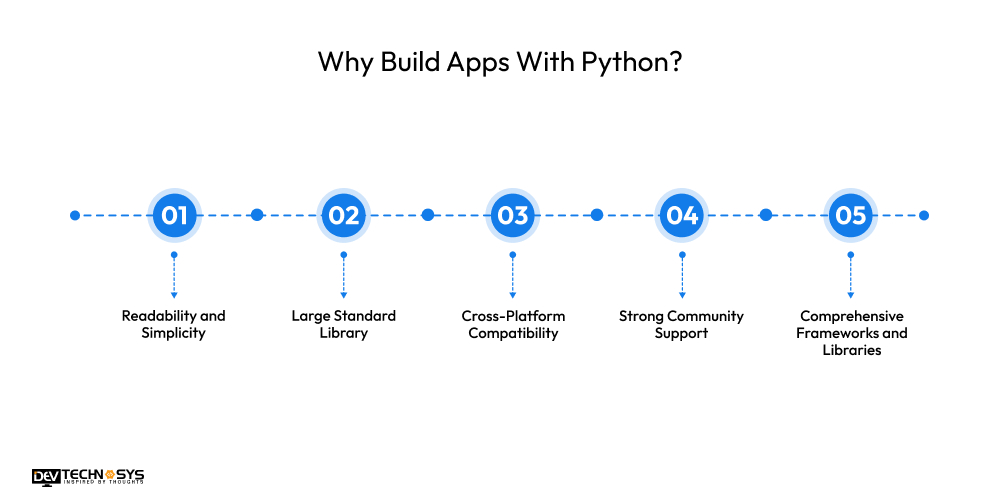
1. Readability and Simplicity
Python’s syntax is easy to learn and write because it looks like normal language. This enhances developer cooperation and minimizes maintenance complexity, allowing teams to focus on issue solving rather than navigating confusing terminology or complex structures.
2. Large Standard Library
Python comes with a big standard library that can be used for everything from working with files to connecting to networks. This shortens Python GUI app development time by eliminating the need to write code from scratch, hire Python developers to create functioning, feature-rich apps more rapidly and effectively.
3. Cross-Platform Compatibility
Cross-platform mobile apps with Python can operate on Windows, macOS, and Linux with minimum modifications. This platform independence simplifies deployment and testing, allowing developers to build Android app with Python and operate anywhere, which is very useful for startups and businesses that serve diverse user contexts.
Want a chatbot demo or pricing? Fill the form and talk to our experts today.
Pick what you need below — you can select more than one — then tap Get detail to continue.
-
Chatbot demo dashboard
-
Cost to develop an app
-
Industry report
-
Case study
4. Strong Community Support
There are a lot of busy Python users around the world who share skills, tools, and open-source libraries. Whether you’re troubleshooting, learning, or scaling, there’s a good chance someone has already addressed your problem, making mobile app development with Python and Kivy faster and less unpleasant.
5. Comprehensive Frameworks and Libraries
Python mobile app frameworks such as Django, Flask, and FastAPI accelerate and secure web app with Python. When combined with data packages such as Pandas or TensorFlow, Python becomes a full-stack powerhouse, suitable for everything from basic websites to large AI-driven apps.
Planning Your Application
Every successful app starts with a solid plan. Consider:
- What does your app do?
- Who is your audience?
- What are you trying to fix?
- What type of interface is required? GUI or CLI?
Let’s take an example: building a simple task manager app that allows users to add, remove, and view tasks. This keeps things concrete as we walk through the steps of the Python app development tutorial.
Choosing the Right Type of App
Python can create different types of apps:
- Command-Line Interface (CLI) – Quick to develop and distribute.
- Graphical User Interface (GUI) — Intuitive, featuring buttons and windows.
- Web Apps — Developed utilizing frameworks such as Flask or Django.
- Mobile Apps – Possible with tools like Kivy or BeeWare.
For this post, we’ll focus on CLI and GUI apps—most accessible for beginners.
Setting Up Your Development Environment
Begin by installing Python from the official website. Then:
Step 1: Create a Project Folder
bash
CopyEdit
mkdir task_manager
cd task_manager
Step 2: Create a Virtual Environment
bash
CopyEdit
python -m venv venv
source venv/bin/activate # On Windows: venv\Scripts\activate
Step 3: Install Dependencies
For CLI: no external packages needed.
For GUI: we’ll use tkinter, which is built-in.
Building a CLI App – A Quick Start
Let’s build a task manager that lets users add and list tasks.
task_manager.py
python
CopyEdit
import os
TASKS_FILE = “tasks.txt”
def load_tasks():
if not os.path.exists(TASKS_FILE):
return []
with open(TASKS_FILE, “r”) as f:
return [line.strip() for line in f.readlines()]
def save_tasks(tasks):
with open(TASKS_FILE, “w”) as f:
for task in tasks:
f.write(task + “\n”)
def add_task(task):
tasks = load_tasks()
tasks.append(task)
save_tasks(tasks)
print(f”Task added: {task}”)
def view_tasks():
tasks = load_tasks()
if not tasks:
print(“No tasks yet.”)
return
print(“Tasks:”)
for i, task in enumerate(tasks, 1):
print(f”{i}. {task}”)
def main():
while True:
print(“\n1. Add Task\n2. View Tasks\n3. Exit”)
choice = input(“Choose an option: “)
if choice == “1”:
task = input(“Enter task: “)
add_task(task)
elif choice == “2”:
view_tasks()
elif choice == “3”:
break
else:
print(“Invalid option.”)
if __name__ == “__main__”:
main()
You now have a fully working CLI task manager!
Adding a GUI – Desktop App With Tkinter
Let’s build the same app but with a GUI using tkinter.
task_gui.py
python
CopyEdit
import tkinter as tk
from tkinter import messagebox
import os
TASKS_FILE = “tasks.txt”
def load_tasks():
if not os.path.exists(TASKS_FILE):
return []
with open(TASKS_FILE, “r”) as f:
return [line.strip() for line in f.readlines()]
def save_tasks(tasks):
with open(TASKS_FILE, “w”) as f:
for task in tasks:
f.write(task + “\n”)
class TaskManagerApp:
def __init__(self, master):
self.master = master
master.title(“Task Manager”)
self.tasks = load_tasks()
self.entry = tk.Entry(master, width=40)
self.entry.pack()
self.add_button = tk.Button(master, text=”Add Task”, command=self.add_task)
self.add_button.pack()
self.listbox = tk.Listbox(master, width=50, height=10)
self.listbox.pack()
self.refresh_tasks()
self.remove_button = tk.Button(master, text=”Remove Selected”, command=self.remove_task)
self.remove_button.pack()
def add_task(self):
task = self.entry.get().strip()
if task:
self.tasks.append(task)
save_tasks(self.tasks)
self.entry.delete(0, tk.END)
self.refresh_tasks()
else:
messagebox.showwarning(“Input Error”, “Task cannot be empty!”)
def remove_task(self):
selected = self.listbox.curselection()
if selected:
index = selected[0]
self.tasks.pop(index)
save_tasks(self.tasks)
self.refresh_tasks()
else:
messagebox.showinfo(“Selection Error”, “No task selected.”)
def refresh_tasks(self):
self.listbox.delete(0, tk.END)
for task in self.tasks:
self.listbox.insert(tk.END, task)
if __name__ == “__main__”:
root = tk.Tk()
app = TaskManagerApp(root)
root.mainloop()
Now you have a simple GUI app that can manage tasks with buttons!
Organizing Your Codebase
As your app grows, modularity is key.
Suggested Structure:
css
CopyEdit
task_manager/
├── main.py
├── gui.py
├── cli.py
├── storage.py
├── utils.py
└── tasks.txt
Each module should be responsible for a single concern:
- py handles saving/loading.
- py contains the Tkinter app.
- py holds command-line logic.
- py chooses between modes.

Enhancing Functionality
Your app can grow in many ways:
1. Add Due Dates
Store tasks with timestamps and sort them.
2. Add Priority Levels
Use color coding or sorting to reflect urgency.
3. Save in JSON
Instead of plain text, switch to structured JSON format for flexibility.
python
CopyEdit
import json
with open(“tasks.json”, “w”) as f:
json.dump(tasks, f)
4. Cloud Syncing
Create an app using Python. Use APIs like Google Drive or Dropbox to sync tasks across devices.
Testing Your Application
Testing prevents regressions and bugs.
Unit Tests
python
CopyEdit
import unittest
from storage import load_tasks, save_tasks
class TestTaskManager(unittest.TestCase):
def test_add_and_load(self):
tasks = [“Test Task”]
save_tasks(tasks)
loaded = load_tasks()
self.assertEqual(loaded, tasks)
Run tests with:
bash
CopyEdit
python -m unittest

Packaging and Distributing Your App
You’ve built a working app. Now what?
1. Using PyInstaller to Create an Executable
Install:
bash
CopyEdit
pip install pyinstaller
Package:
bash
CopyEdit
pyinstaller –onefile task_gui.py
This generates a standalone .exe or binary for distribution.
2. Creating an Installer
Use tools like:
- Inno Setup (Windows)
- create-dmg (macOS)
- Debian package tools (Linux)
3. Uploading to GitHub
Host your source code and releases on GitHub.
Best Practices and Common Pitfalls
Best Practices and Common Pitfalls: Mastering clean code, modular design, proper error handling, and cross-platform compatibility helps ensure your Python app is reliable, maintainable, and user-friendly, while avoiding bugs, poor UX, and deployment issues.
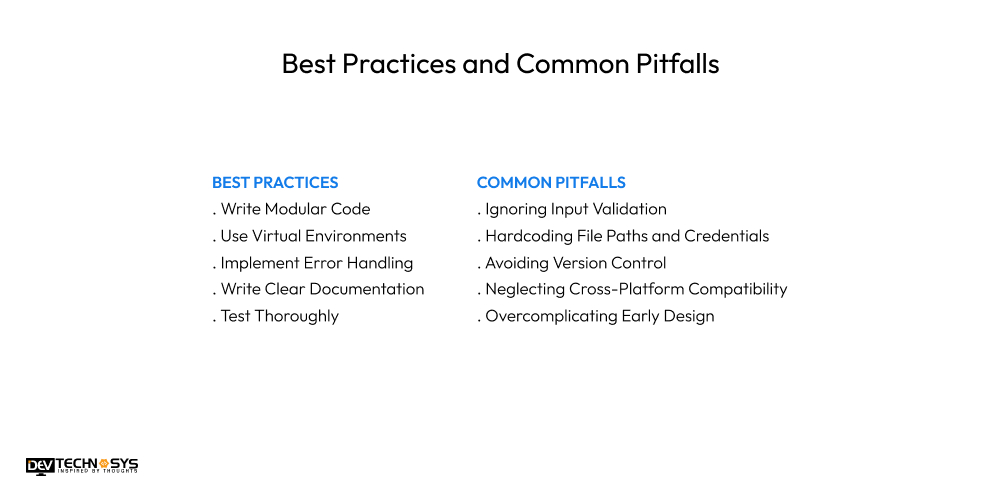
1. Write Modular Code
Divide your application into discrete, reusable modules or functions. This increases readability, simplifies debugging, and facilitates future upgrades. Modular code also promotes greater team cooperation and allows for independent component testing, resulting in more maintainable and scalable programs.
2. Use Virtual Environments
Always hire dedicated developers to develop in virtual environments to manage dependencies and prevent project conflicts. This separates your app’s packages, providing consistent functionality across several systems and facilitating deployments.
3. Implement Error Handling
Prepare for probable failures by include suitable try-except blocks. Proper error handling eliminates crashes, offers useful feedback to users, and aids in the early detection of flaws, so boosting the resilience of your application.
4. Write Clear Documentation
Use relevant comments and README files to document your code, functions, and modules. Good documentation helps people understand your app’s purpose, usage, and architecture, making it simpler to onboard and collaborate.
5. Test Thoroughly
Create unit and integration tests to ensure your software performs as intended under various conditions. Hire mobile app developers to automate testing, identify defects early on, improve code quality, and guarantee that new changes do not damage current functionality.
Common Pitfalls:
1. Ignoring Input Validation
Failure to verify user input may result in app failures, improper behavior, or security risks. Always ensure that inputs match the required types, lengths, and formats. Without validation, users may provide malicious or malformed data, resulting in bugs or vulnerabilities that jeopardize app stability and user confidence.
2. Hardcoding File Paths and Credentials
Including fixed file locations or sensitive information directly in your code limits flexibility and security. Hardcoded pathways frequently fail on multiple computers or operating systems, but exposed credentials increase the danger of illegal access. Instead, utilize configuration files or environment variables to handle them in a secure and flexible manner.
3. Avoiding Version Control
Failure to use version control systems such as Git jeopardizes code tracking and successful collaboration. Without it, retrieving prior versions and resolving issues becomes impossible.
Hire Android app developers to use version control promotes orderly development, quicker debugging, and team coordination, all of which are necessary for any major app project.
4. Neglecting Cross-Platform Compatibility
Assuming your program functions equally on Windows, macOS, and Linux frequently results in unanticipated issues. OS-specific changes in file management, directories, and GUIs must be considered and extensively verified. Ignoring this leads to bad user experience or outright failures on unsupported systems.
5. Overcomplicating Early Design
Trying to construct a fully complete, flawless program right away results in complicated, difficult-to-maintain code. This hinders advancement and introduces errors.
Commence with a minimal viable product (MVP) that emphasizes essential functionalities. Then, iterate depending on feedback, gradually enhancing the design and functionality to get better outcomes.
Conclusion
In conclusion, the best Python frameworks for mobile apps make it easy for beginners to create apps that are scalable, effective, and user-friendly. Python speeds up development whether you’re making a desktop, online, or data-driven application.
Working with a seasoned Python development company guarantees professional advice, quicker deployment, and ongoing support for companies looking for dependable, high-quality solutions. They can assist you with converting your application concept into a robust, user-ready solution.
Frequently Asked Questions
1. What Types Of Apps Can I Build With Python?
You can build web apps, desktop apps, data analysis tools, automation scripts, APIs, and even games using Python.
2. Do I Need A Database To Build An App With Python?
Yes, most apps require data storage. Python accommodates SQLite, PostgreSQL, MySQL, and other databases with Object-Relational Mappers (ORMs) such as SQLAlchemy and Django ORM.
3. What Is The Process For Deploying A Python Web Application?
You can deploy Python apps on Heroku, Render, DigitalOcean, AWS, or PythonAnywhere, depending on your needs.
4. Is Python Fast Enough For Large-Scale Apps?
While not the fastest language, Python scales well with optimized code, asynchronous features, and integration with other technologies.
5. What IDEs Are Best For Python App Development?
There are various IDEs for Python mobile app development, including VS Code, PyCharm, Sublime Text, and Jupyter Notebook for data-focused apps.